Reports can be generated for all jobs in “Exception to be implemented” status. Internal Audit Report can be generated separately for each location.
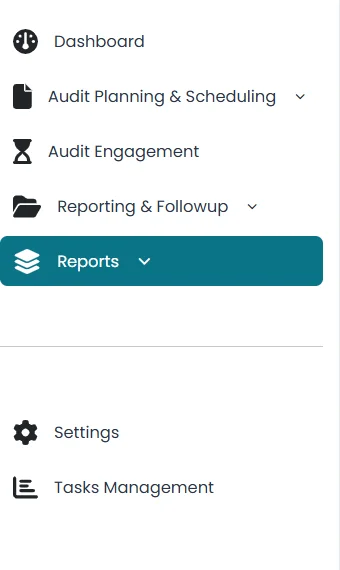
Click on Reports on the left side of window.
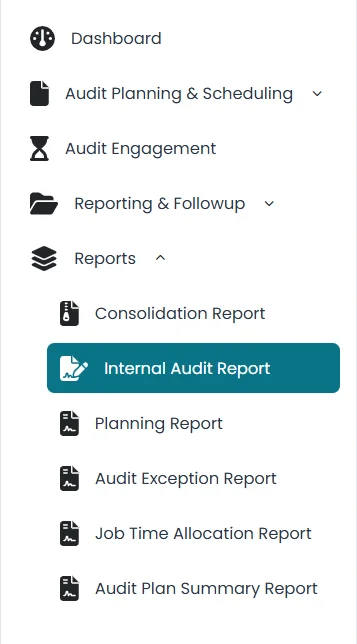
Click on Internal Audit Report to view the reports.
Click on Generate button.
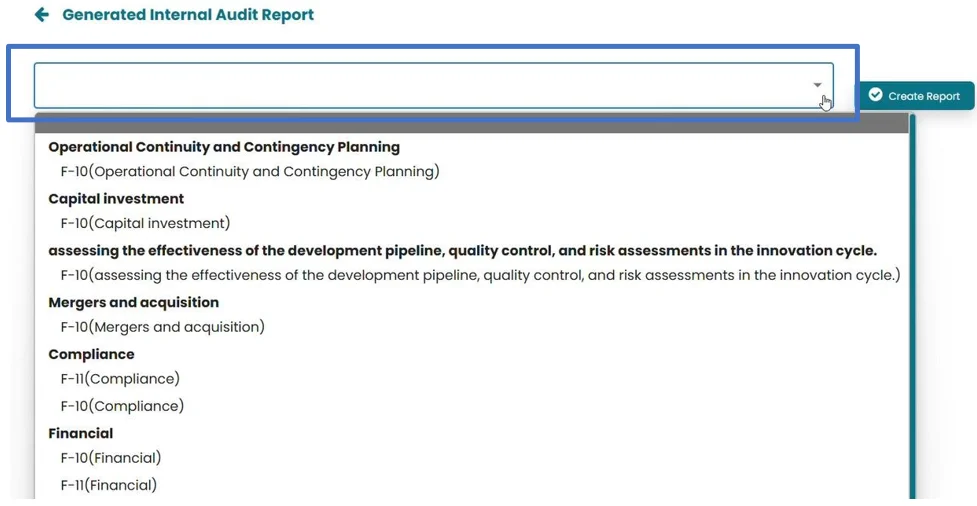
Click on drop-down menu. All jobs for which report can be generated will appear.
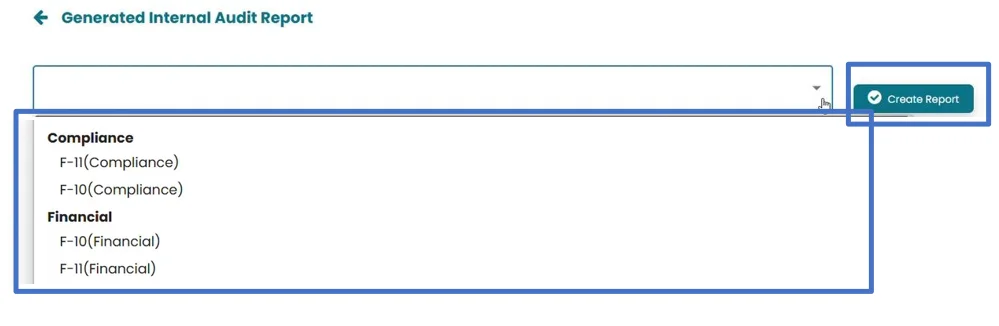
Select the Job for which report need to be generated. And then click on Create Report.
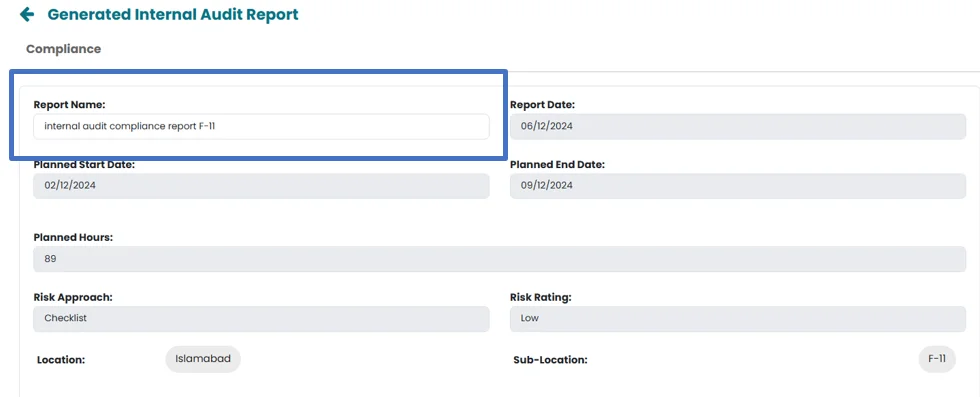
Write name of report in the Report Name area.
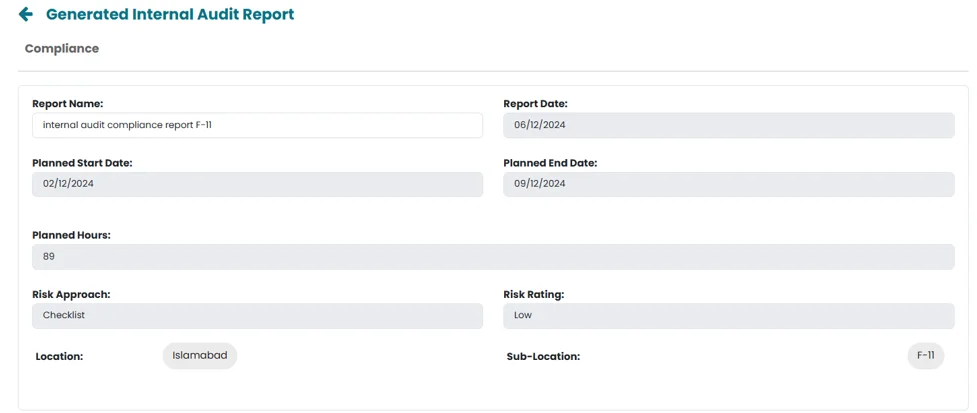
Report date, Planned start date, Planned End date, Planned hours, Risk Approach, Risk rating, location and sub location will be populated automatically.
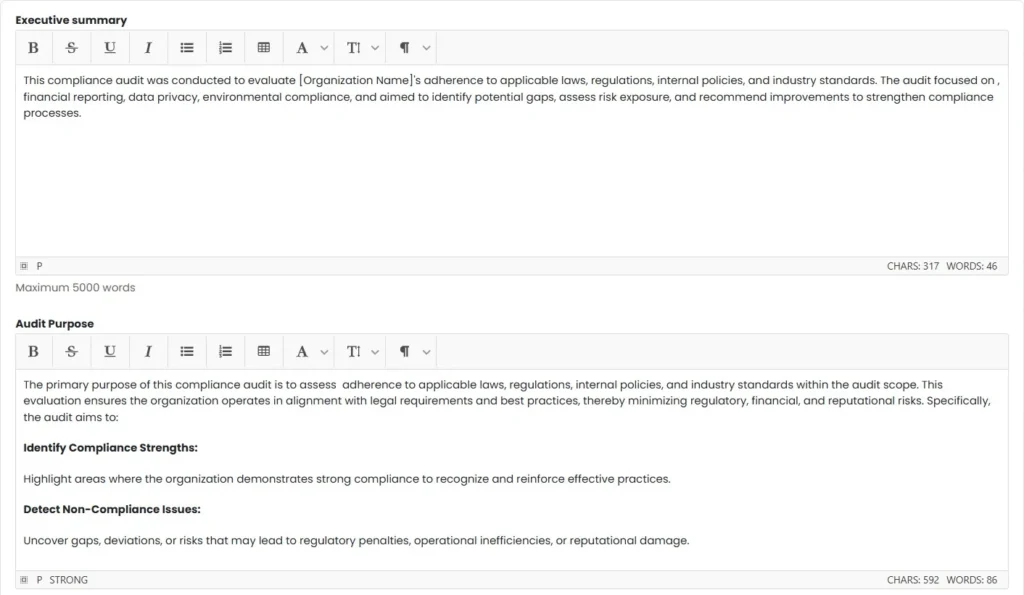
Populate area assigned for Executive Summary and Audit Purpose.
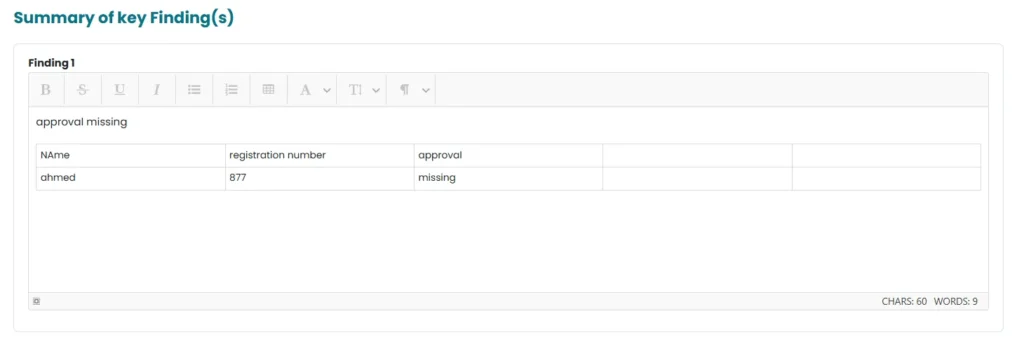
All those Observations for which implication rating was selected “high” in Reporting section will appear in Summary of Key Findings.
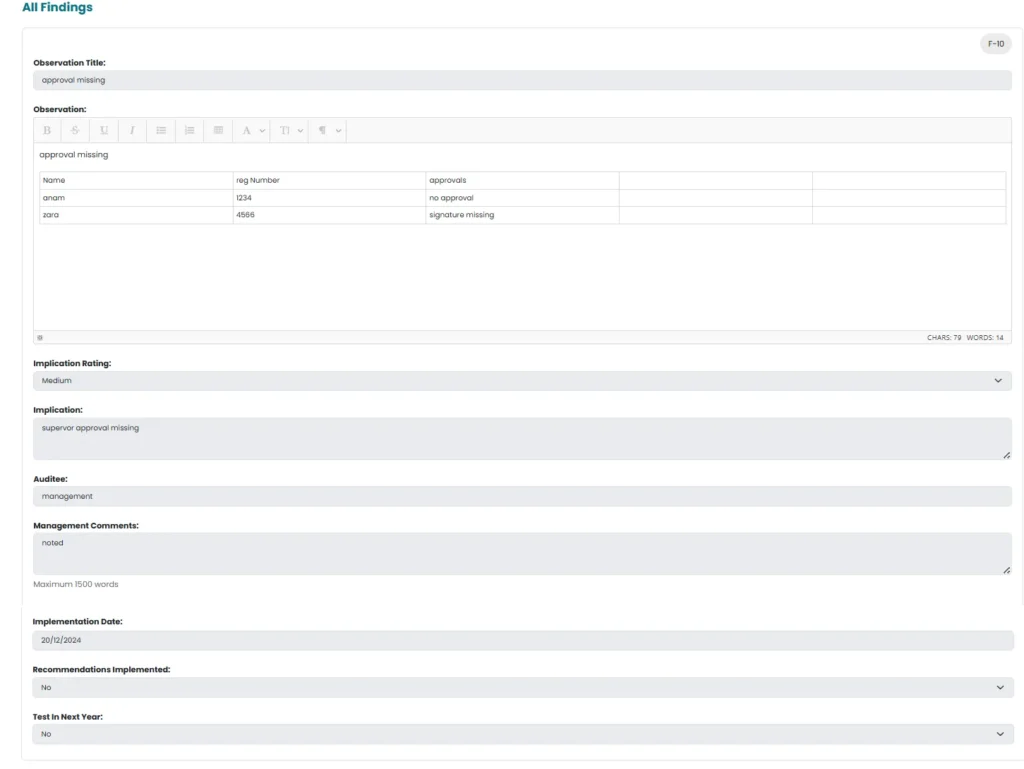
All observations will be populated under All Finding section.
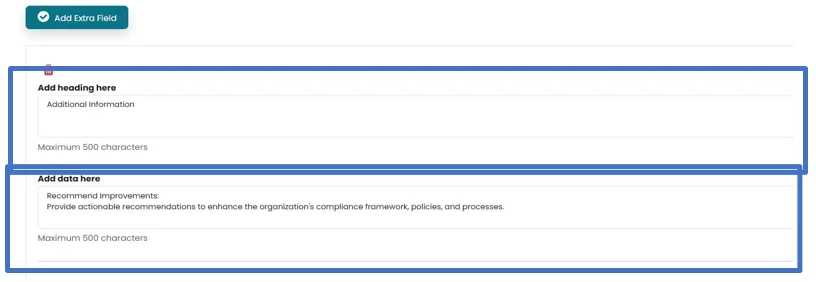
Additional fields can be added in the report by clicking on Add Extra Field button.
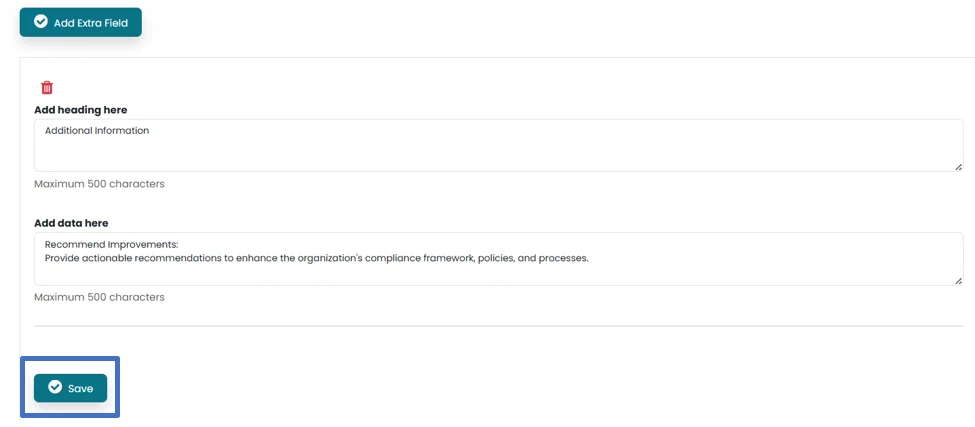
User can populate heading and data in the provided spaces.
Click on Save button in order to save Extra Field added.
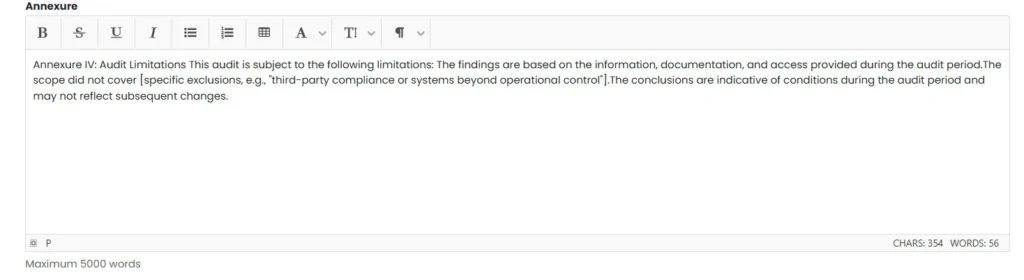
Populate field provided for Annexure.
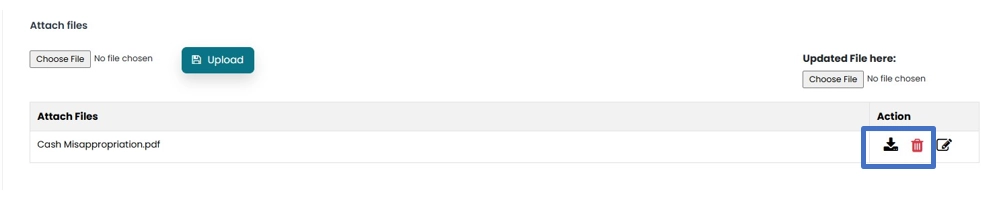
Files can be attached by clicking on Choose File and then click on Upload Button.
In order to update attached file, click on choose file under Uploaded file here. Then click on Edit icon in the action area.
File can be downloaded by clicking on Download icon and deleted by clicking on Delete icon.
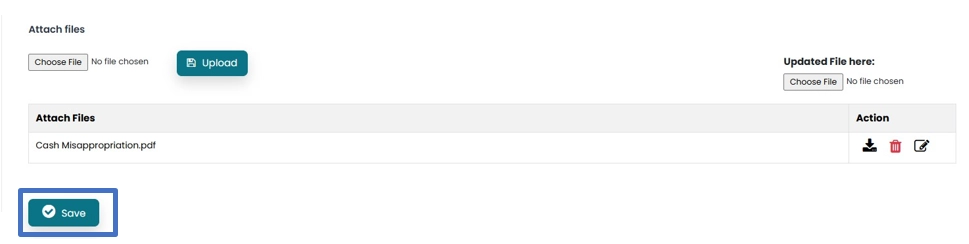
Click on Save button to save the changes made in report.
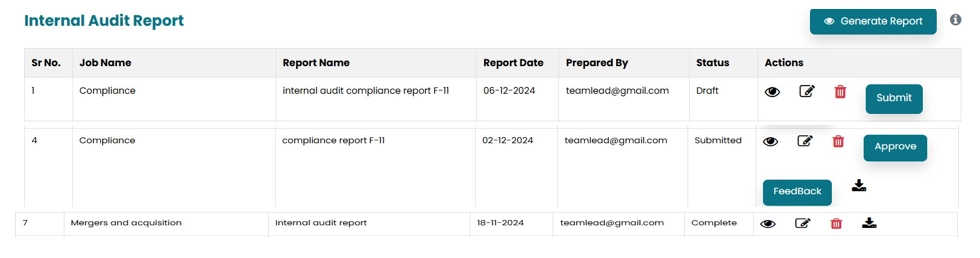
All generated reports can be seen on the internal audit report main window. Under this Job Name, Report name, Report date, Prepared by, Status and Action is populated through system.
User can View, Edit or delete report by clicking on respective icons. Click on Submit button in order to submit report. Status will be updated to Submitted.
After submitting, “Approve” and “Feedback” button will appear on Internal Audit Head account.
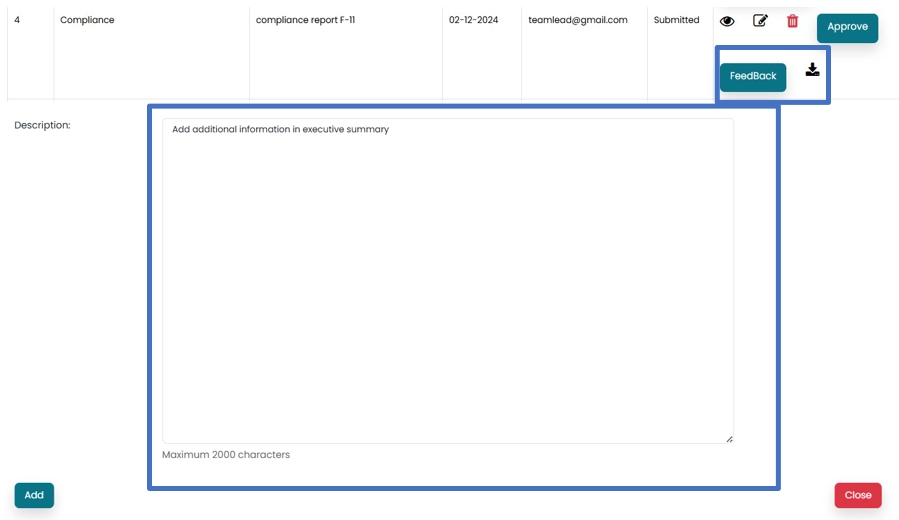
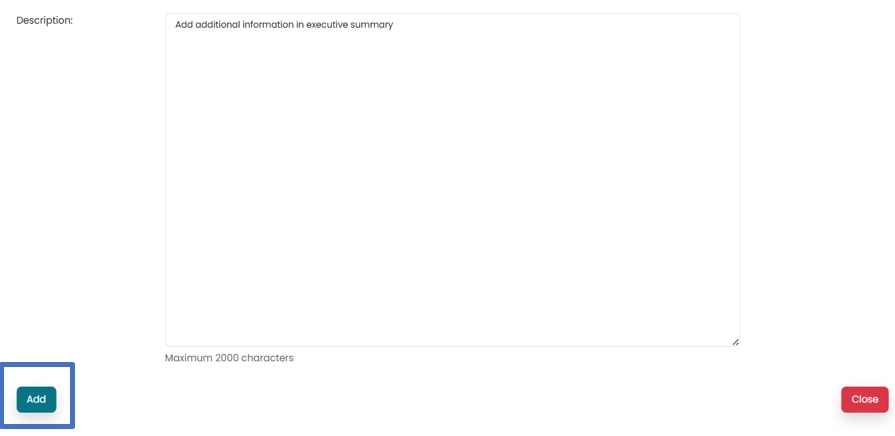
Internal Audit Head can click on feedback button and add description in the space provided.
Click on Add button in order to submit feedback.
User can click on view feedback button in order to view feedback and click on submit in order to resubmit the report.
Report can be approved by Internal Audit Head by clicking on Approve Button. Status will change to completed.
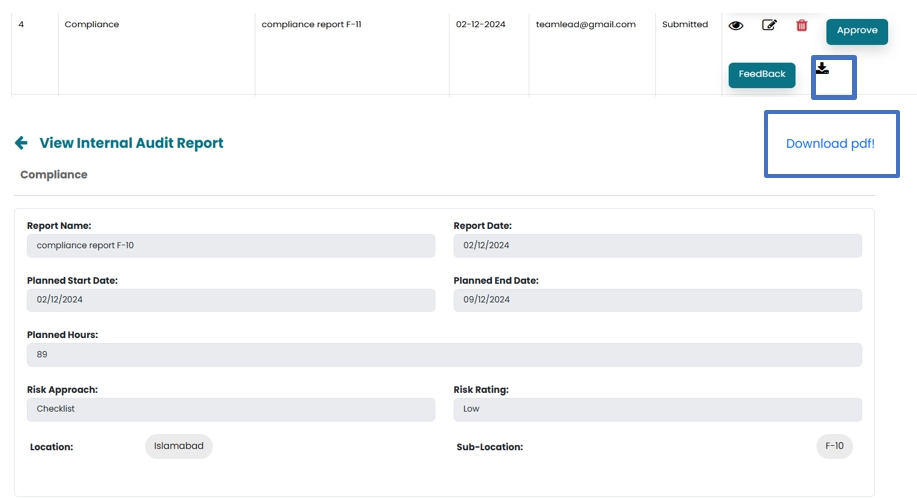
Report can be downloaded by clicking on Download Icon. Then click on Download PDF Button.
Try the full version of Abilite with a 15-day free trial.