
Only Administrator can add new Users.
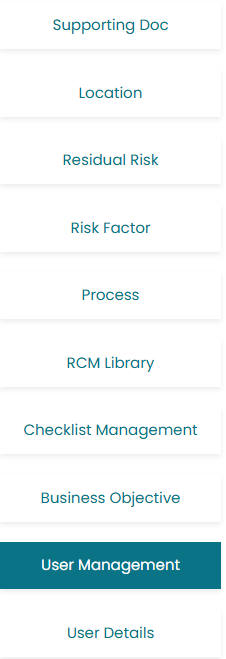
- Click on User management located at left side of the screen in Admin Account
- Add new user by clicking on Add User button.

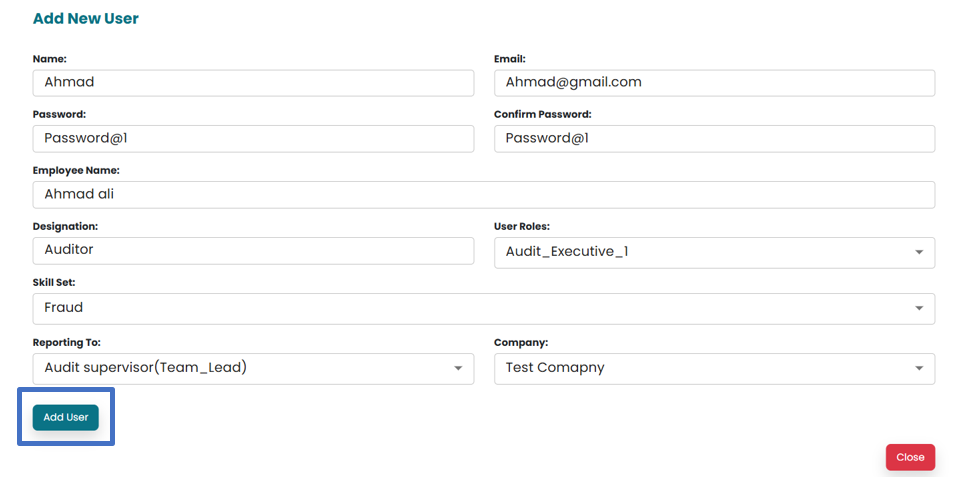
- A new Window will open in order to add details relating to new user.
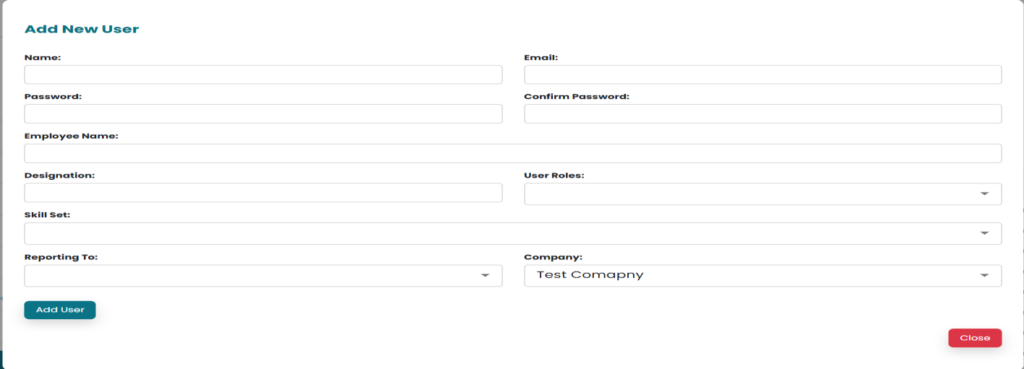
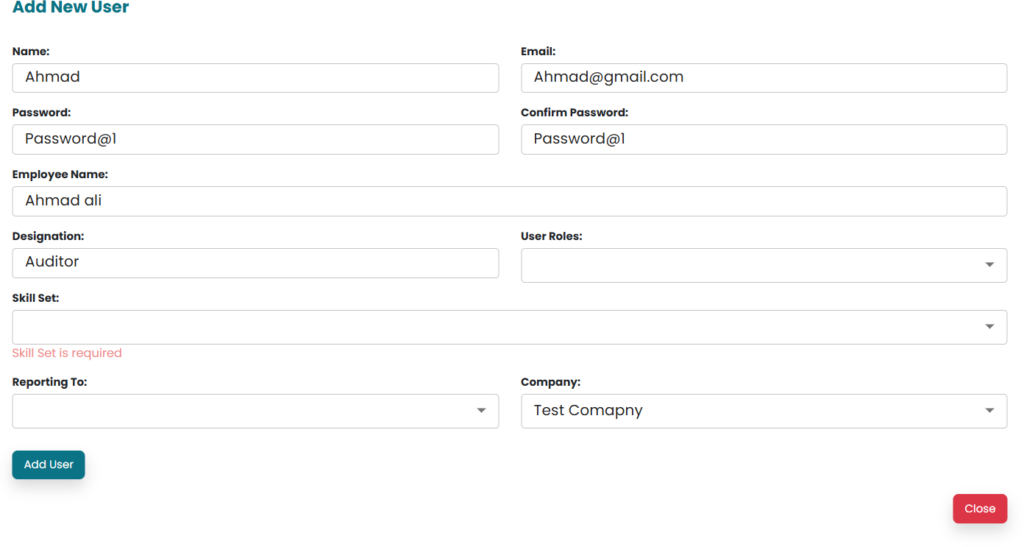
- Enter Name, Email, Password, Confirm password, Employee name and Designation in the respective provided areas.
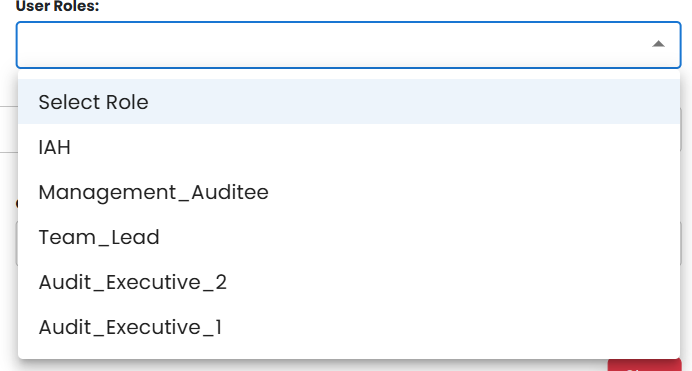
- Click on user role in order to open drop-down menu for selecting user role
- Internal Audit Head (IAH) can submit and approve all the steps in the process.
- Management_ Auditee is the management account and user can give access to management of the account.
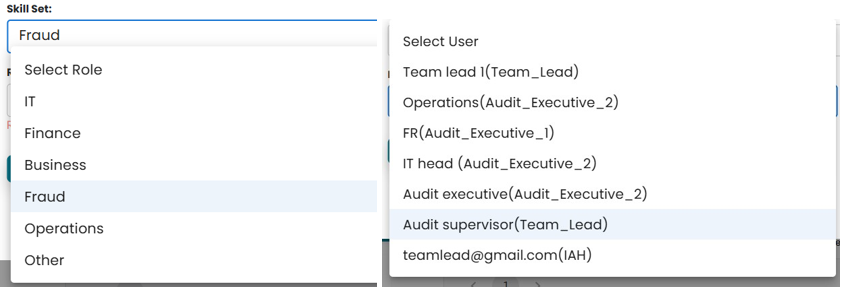
- Select “Skill set” and “Reporting to” from the drop-down menu.
- Once all the data is entered, click on Add User to save the new user.
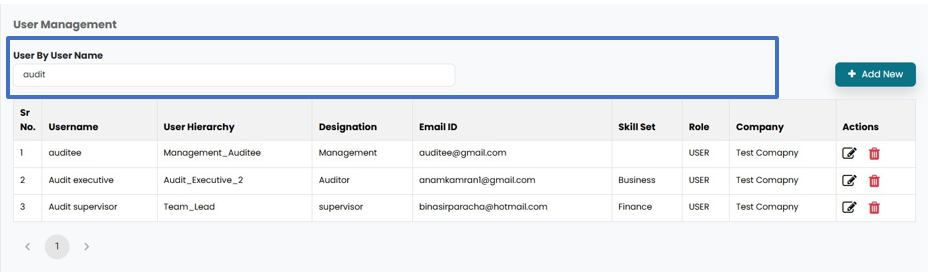
- User details can be edited by clicking on edit icon and user can be deleted by clicking on delete icon.

- Added user can be searched by entering text in the area provided at the top of User management window.
- User can Login their account by entering Email ID and Password.