
In this section, all the saved locations and sublocations against audit jobs are populated.
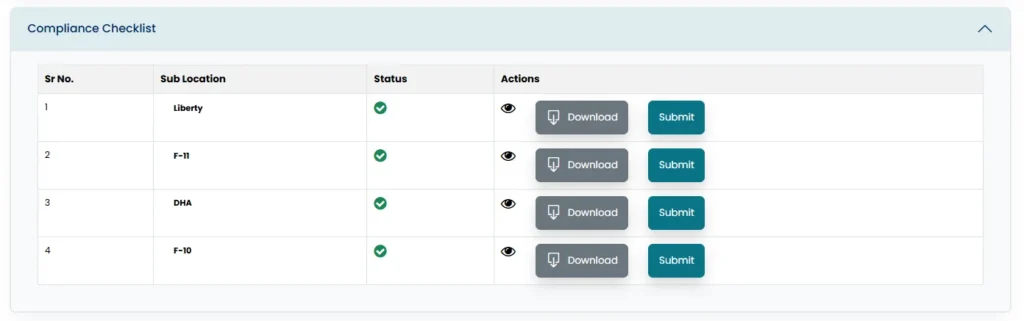
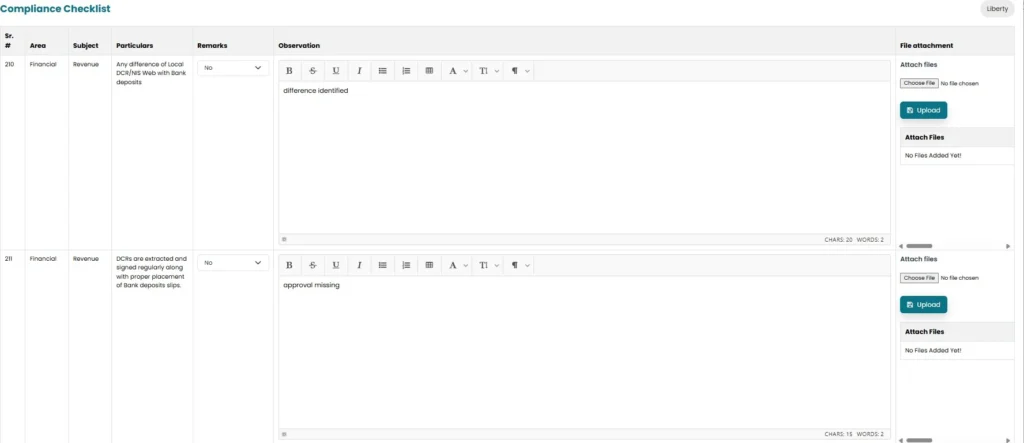
- By clicking on the view icon, user can view the compliance checklist related to the job including
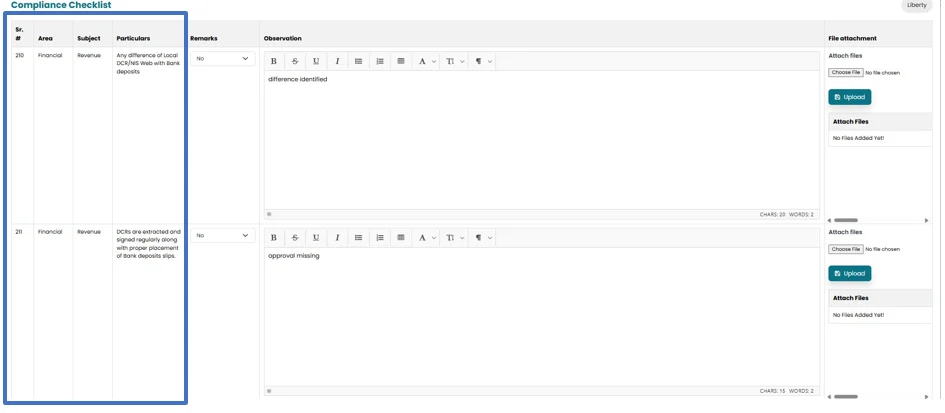
- Area
- Subject
- Particulars
- Remarks
- Observation
- File Attachment
- System will fetch the area, subject and particulars from the pre saved checklist
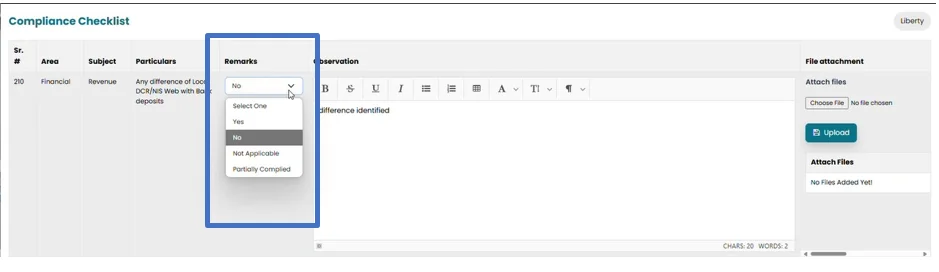
- Select one option from the drop-down list in remarks section including;
- Yes
- No
- Not applicable
- Partially complied
- Observation relating to particular compliance need to be included in observation area.
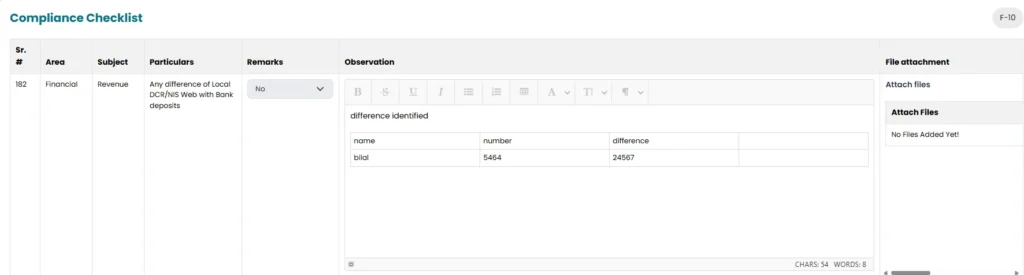
- In order to attach the file, click on choose file and then Upload
Note: File need to be in Pdf or excel format
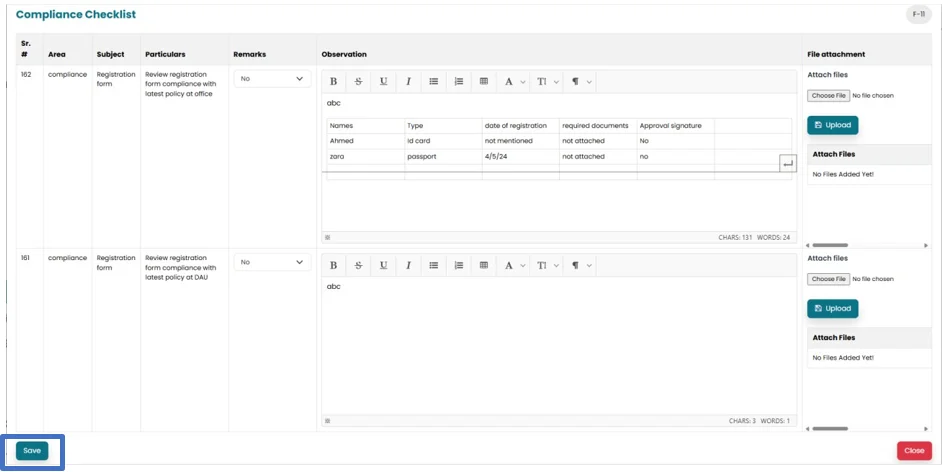
- User can Click on the “Save” button to save the progress made on the job.
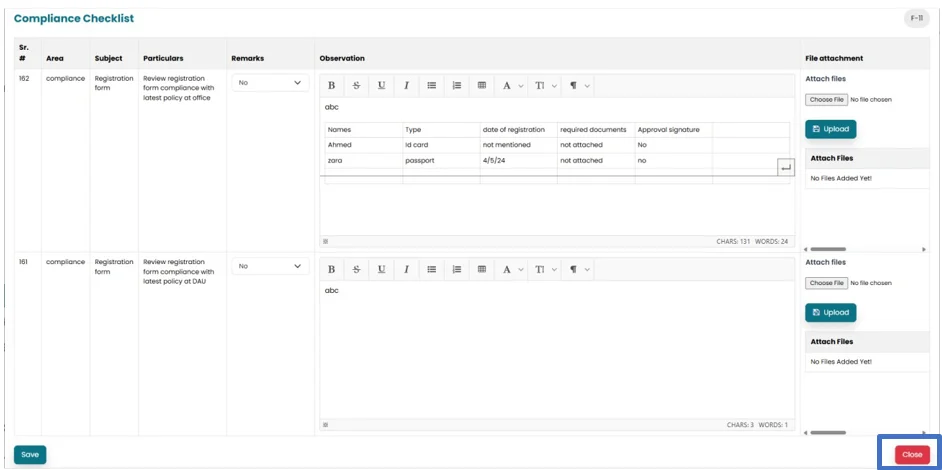
- Click on the “Close” button to close this screen.
- Click on the “Submit” button to forward the progress to Head of Internal Audit.
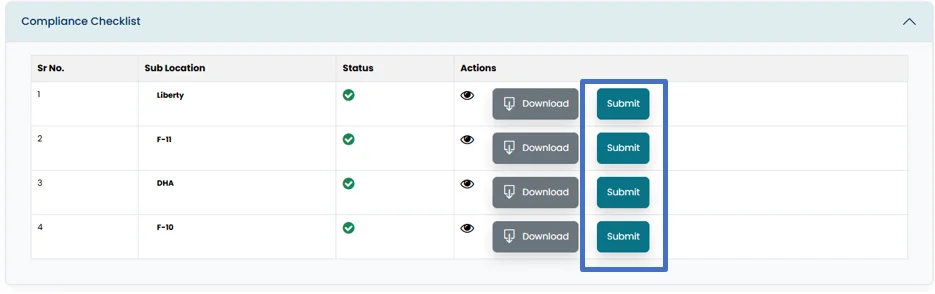
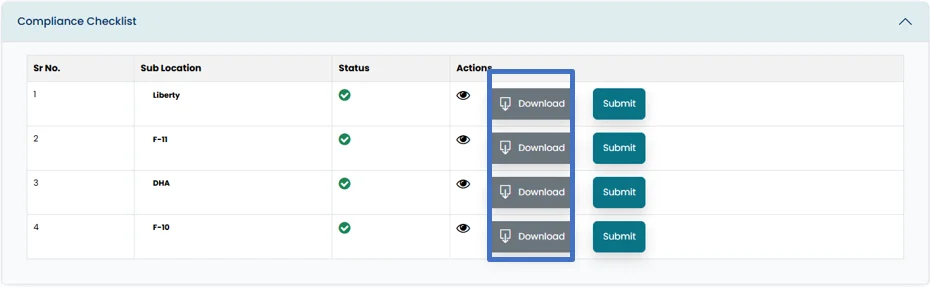
- Compliance checklist can also be downloaded in excel file by clicking on download button.
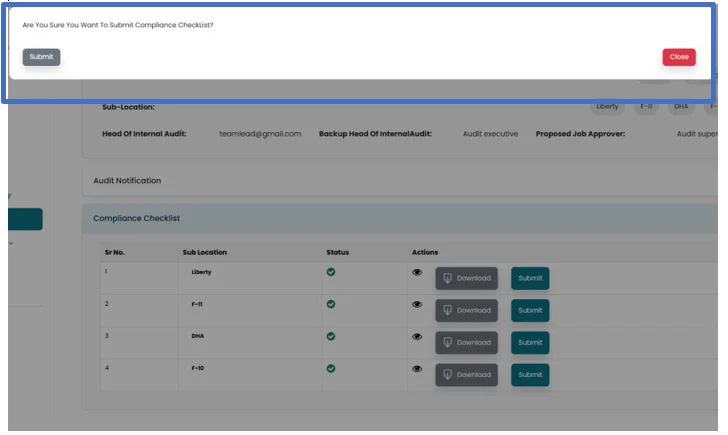
- Before Submission, the system will prompt the user whether they want to proceed to the next step.
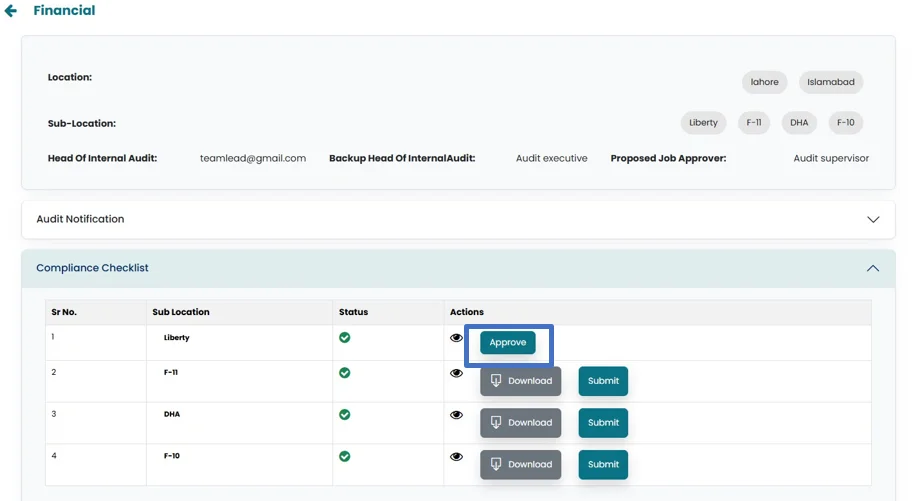
- After submission , an “Approve” button will appear in the Internal Audit Head’s account. The Internal Audit Head can review and then “Approve” the Compliance checklist.
Please note that only the Internal Audit Head’s approval is required to finalize the compliance checklist.
- All the Approved jobs will forward to reporting section