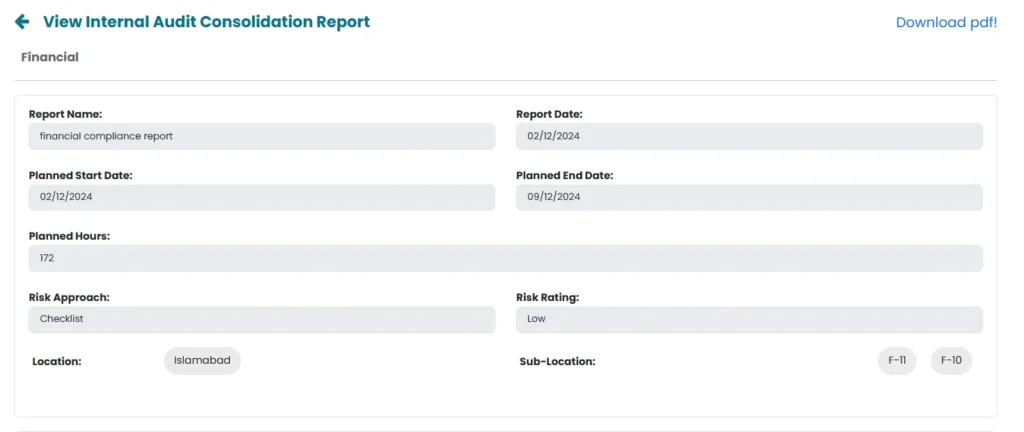
If there are similar observations on different locations of the company, consolidated report can be generated for those observations.
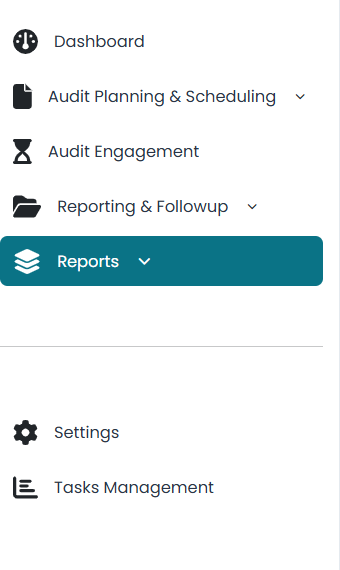
- Click on Reports on the left side of window.
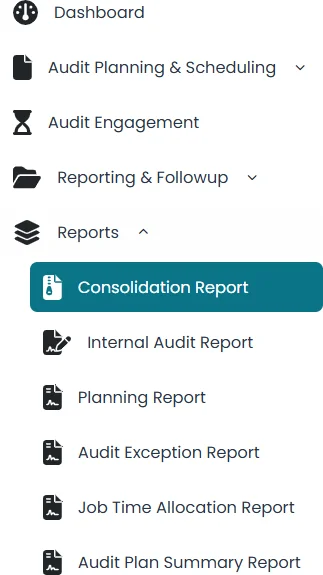
- Click on consolidation Report to open the reports.
- Click on Generate button.

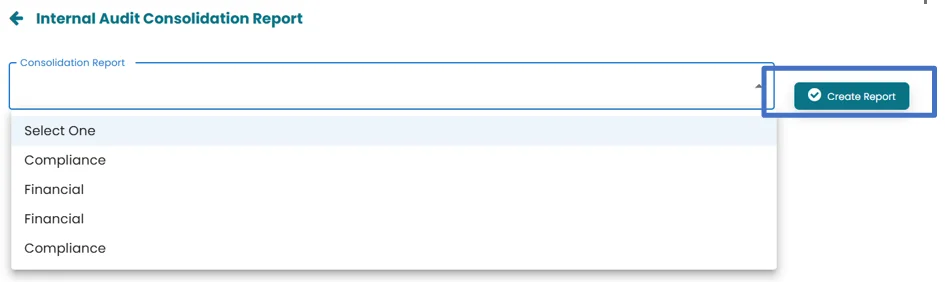
- All the jobs for which consolidated audit report can be generated are populated by system and can be viewed by clicking on drop-down menu.
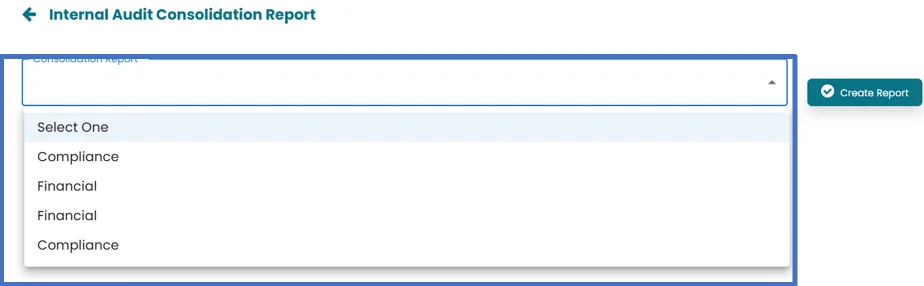
- Select the Job for which report need to be generated and click on Create Report button. Automated format will appear for user to populate.
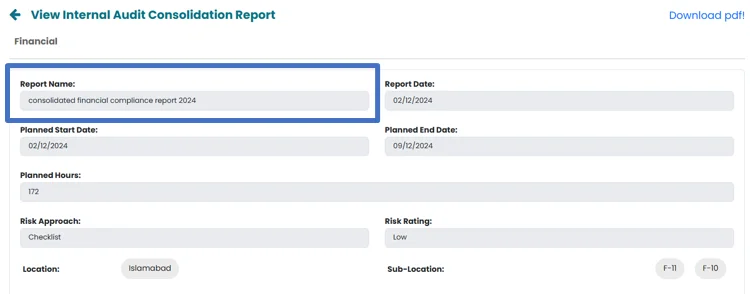
- Write name of report in the Report Name area.
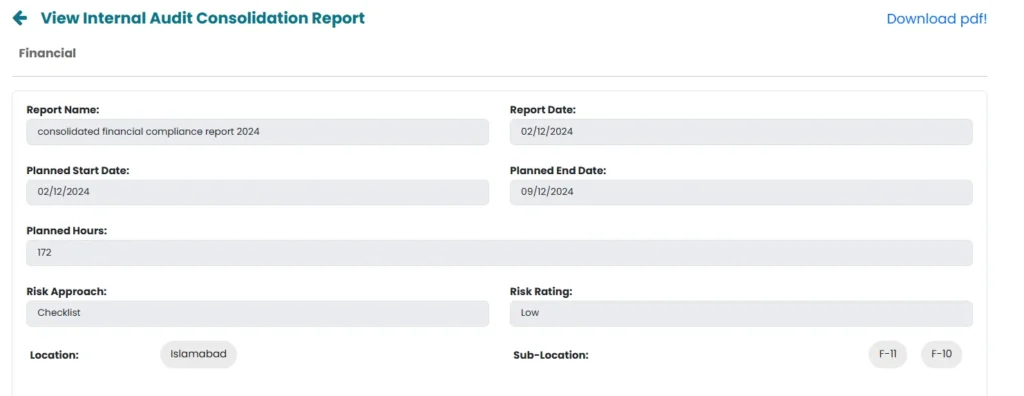
- Report date, Planned start date, Planned End date, Planned hours, Risk Approach, Risk rating, location and sub location will be populated automatically.
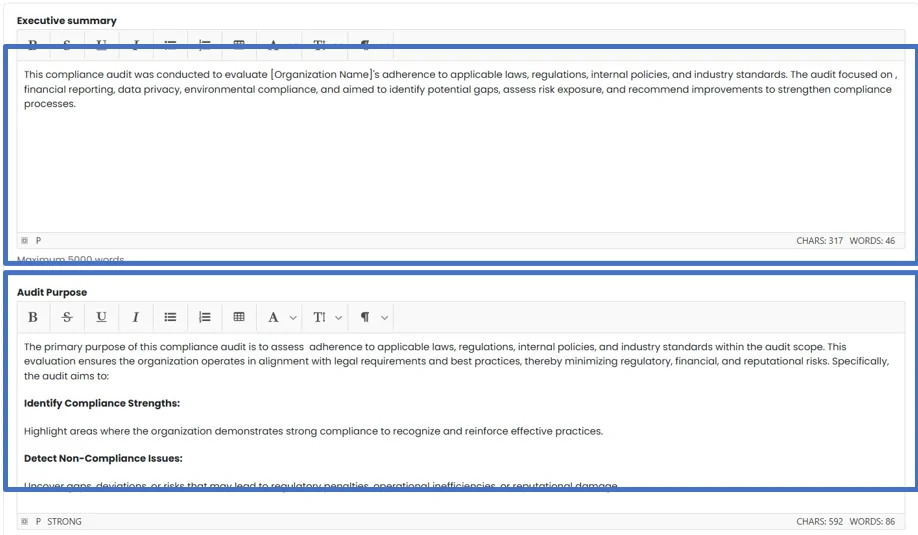
- Populate area assigned for Executive Summary and Audit Purpose.
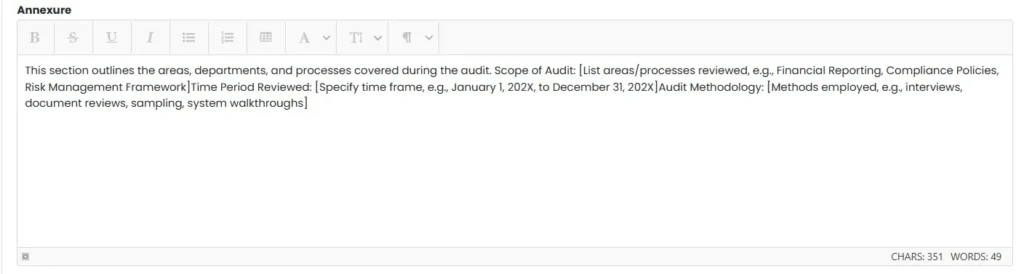
- Populate area assigned for annexure.
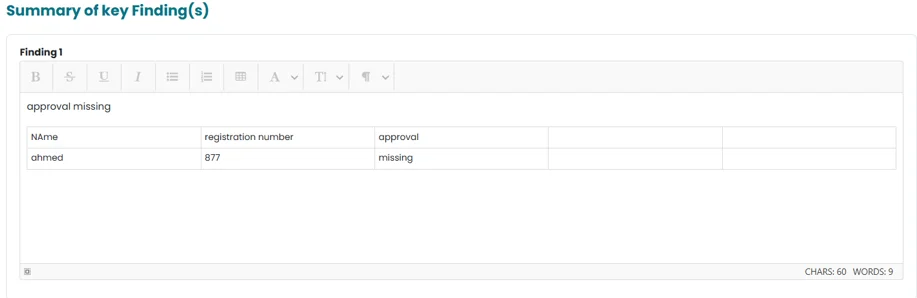
- All those Observations for which implication rating was selected “high” in Reporting section will appear in Summary of Key Findings.
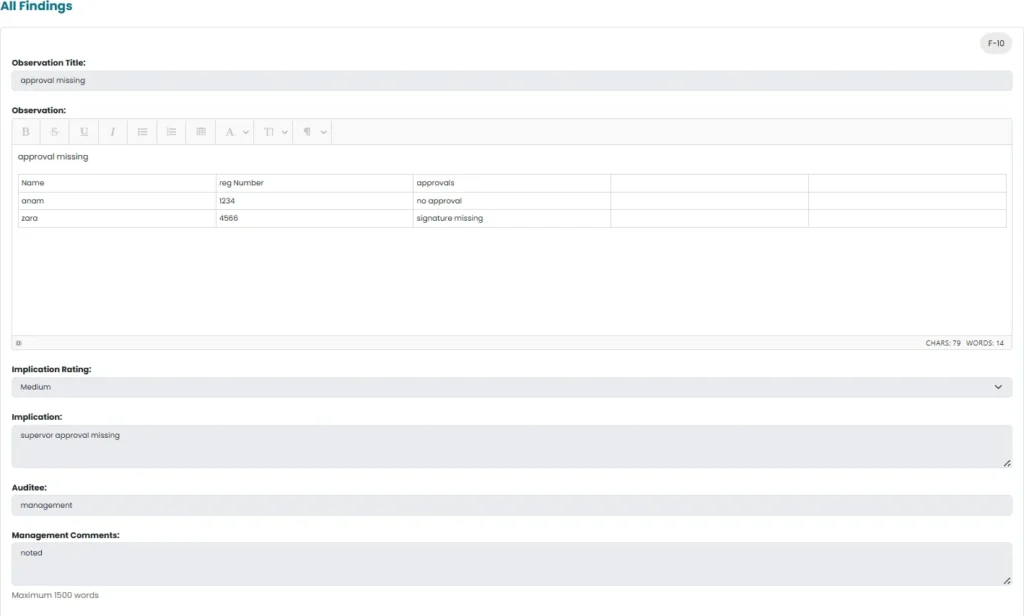
- All observations will be populated under All Finding section.
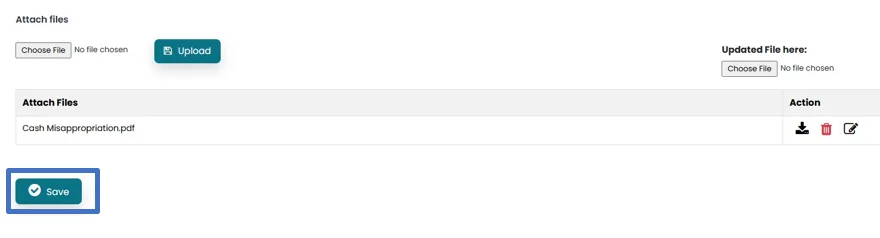
- Files can be attached by clicking on Choose File and then click on Upload Button.

- In order to update attached file, click on choose file under Uploaded file here. Then click on Edit icon in the action area.

- File can be downloaded by clicking on Download icon and deleted by clicking on Delete icon.

- Click on Save button to save the changes made in report.
- All generated reports can be seen on the consolidated report main window. Under this Job Name, Report name, Report date, Prepared by, Status and Action is populated through system.
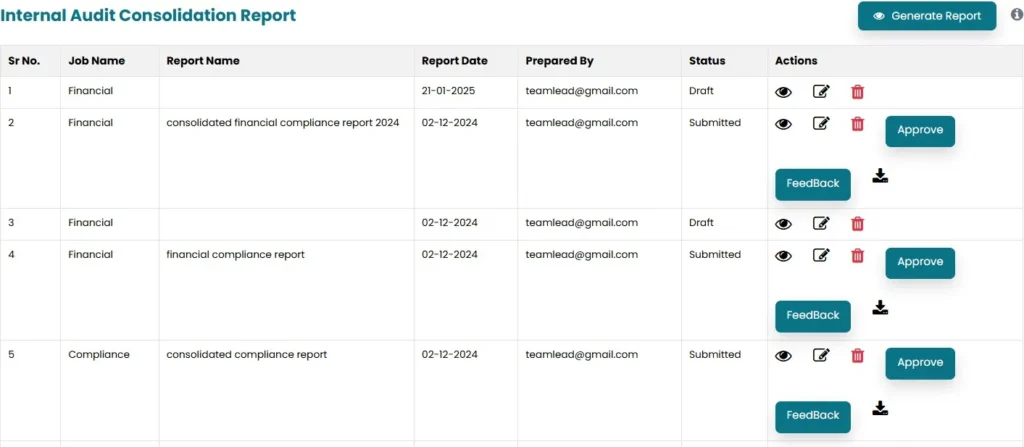
- User can View, Edit or delete report by clicking on respective icons. Click on Submit button in order to submit report. Status will be updated to Submitted.

- After submitting, “Approve” and “Feedback” button will appear on Internal Audit Head account.

- Internal Audit Head can click on feedback button and add description in the space provided.
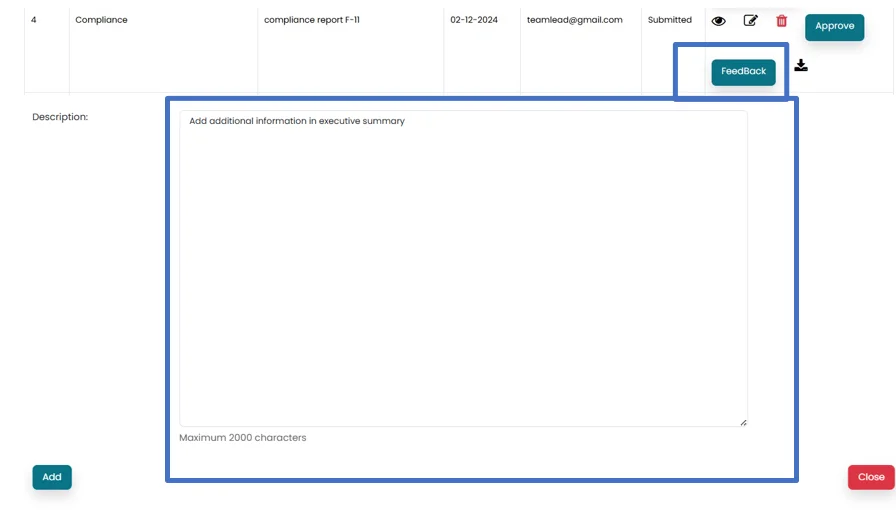
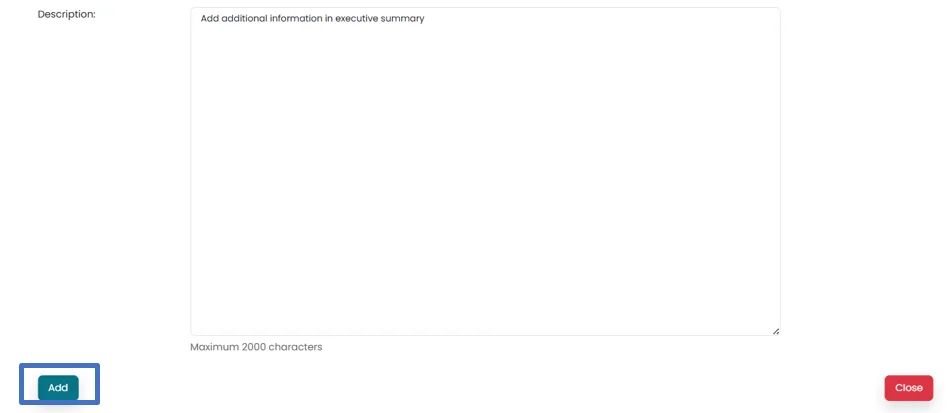
- Click on Add button in order to submit feedback.
- User can click on View Feedback button in order to view feedback and click on Submit in order to resubmit the report.

- Report can be approved by Internal Audit Head by clicking on Approve Button. Status will change to completed.

- Report can be downloaded by clicking on Download Icon. Then click on Download PDF Button.