
Under this section, list of all jobs submitted in Job Prioritization section will be available.

- By clicking on the “View Job Schedule” button, all the jobs along with ‘year’, ‘planned start date’, ‘planned end date’, ‘status’ and ‘risk rating’ can be viewed.
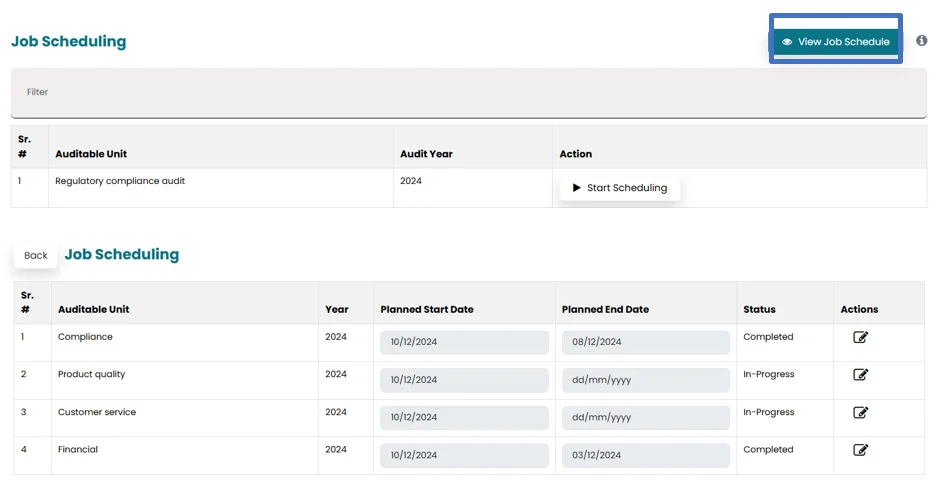
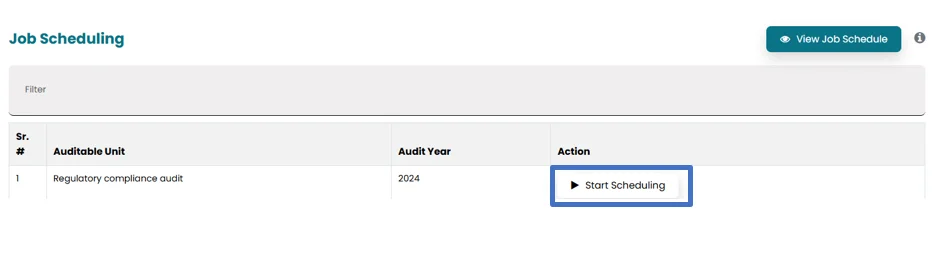
- Click on “Start scheduling” to populate location, estimated time and number of required resources.
- Select the location from the drop-down list, then select sublocation from drop-down list

- Multiple locations can be selected for one job

- If user want to create separate job for each location, then check box for separate location

- Determine the number of resources needed to execute the job based on the user’s/Internal Audit team member skills by clicking on “Determination of Number of Resources Required”, select from the following categories:
- IT
- Business
- Fraud
- Operation
- Finance
- Others
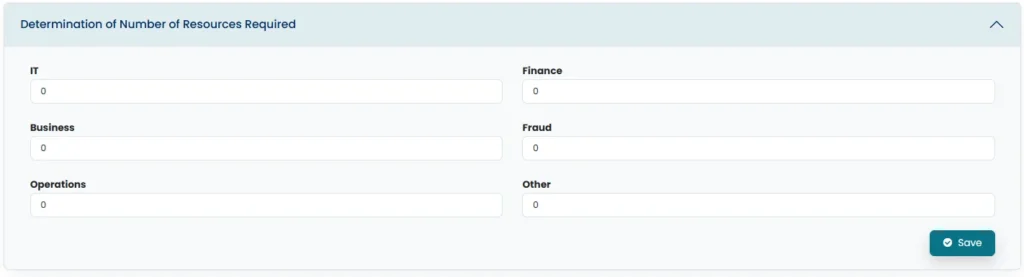
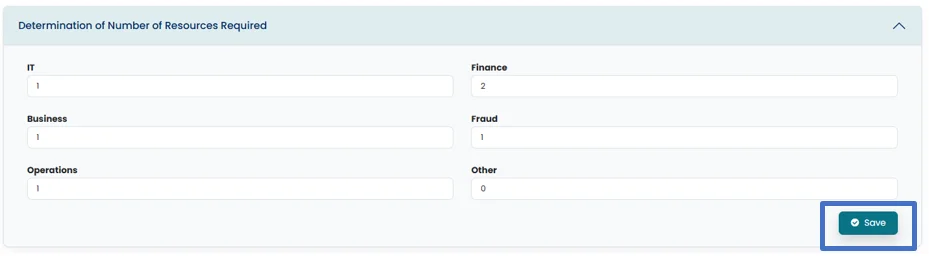
It is essential to mention the number of resources as it will display a list of staff with the specific skill sets for resource allocation purposes.
- Once all the information is entered into the fields, click on the “Save” button to proceed further.
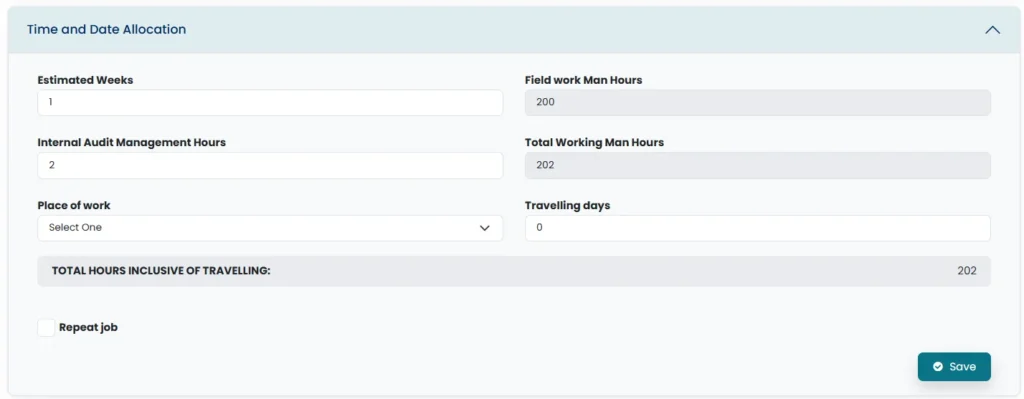
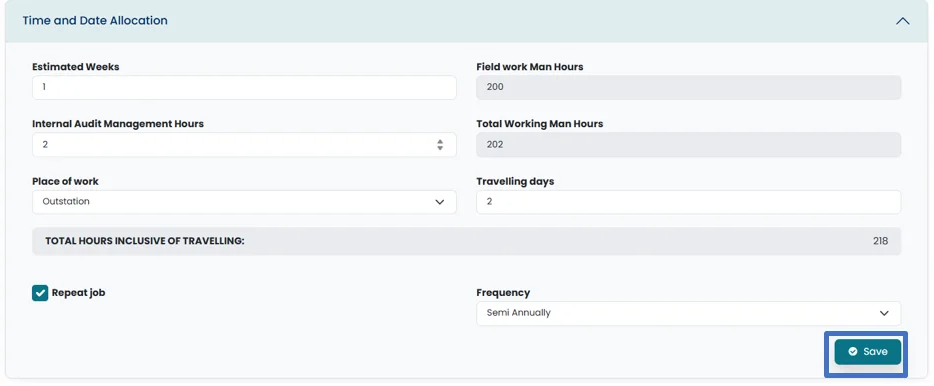
- In the “Time and Date allocation” section, indicate the number of estimated weeks necessary to complete the job. Each week comprises 40 hours. The system will automatically calculate the “Field Work Man Hours” based on the required resources and weeks.
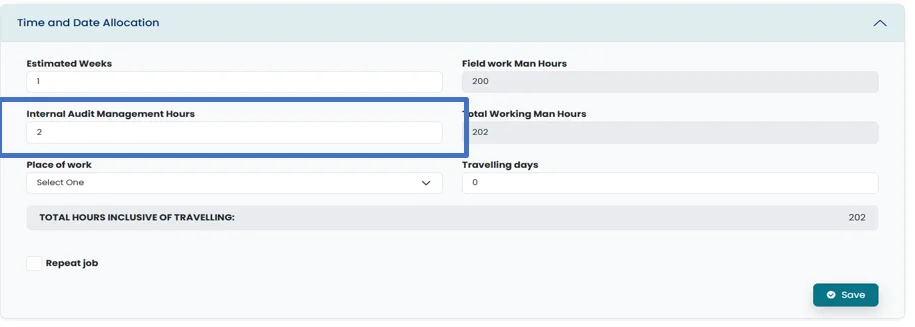
- Include the “Internal Audit Management Hours/Internal Audit Head” required for reviewing the work performed by the Auditor, Team Lead, or Initiator.
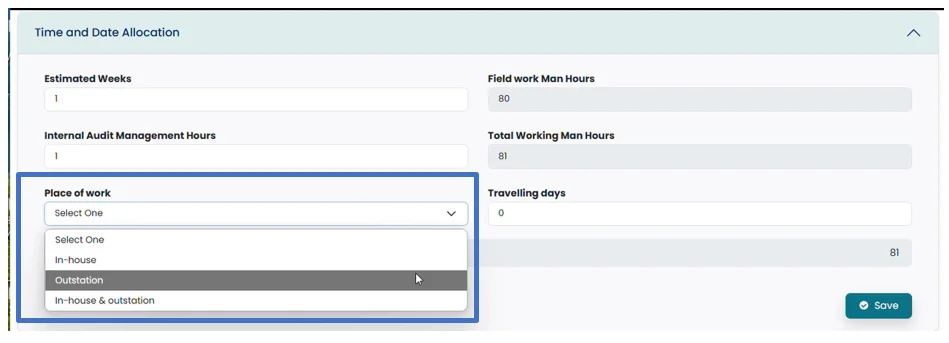
- Select the Place of work from the dropdown, choosing among “Inhouse”, “Outstation” or “Inhouse and Outstation.
- If the job is designated as “Outstation” or “Inhouse and Outstation,” add the “Travelling Days” in the respective field. The system will automatically compute the “Total Hours Inclusive of Travel”.
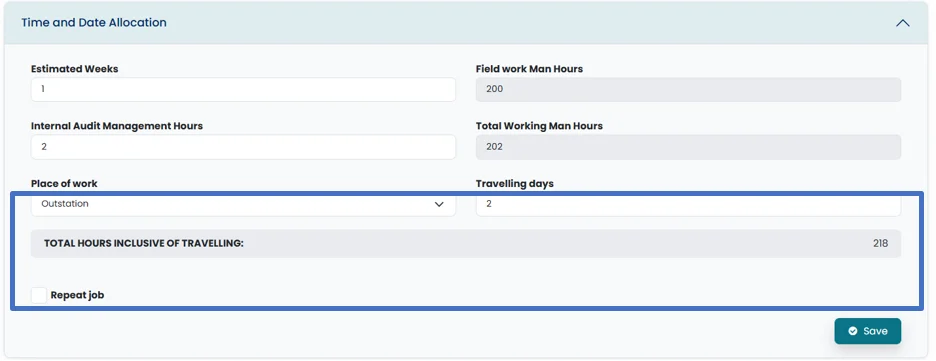
- User can check the repeat box job if job need to be performed again in the year, and select frequency of job from drop down menu.
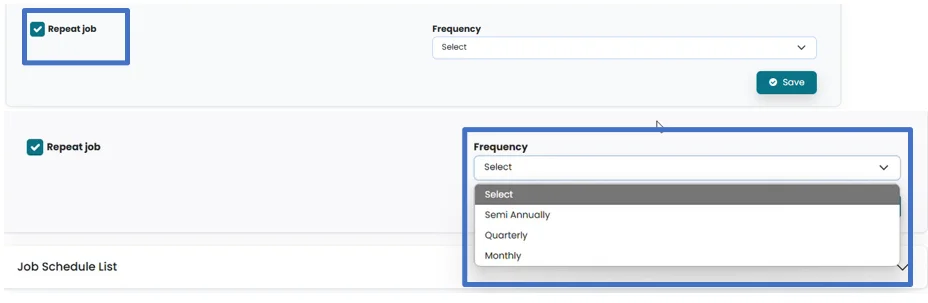
- Once all the information is entered into the fields, click on the “Save” button to proceed further.
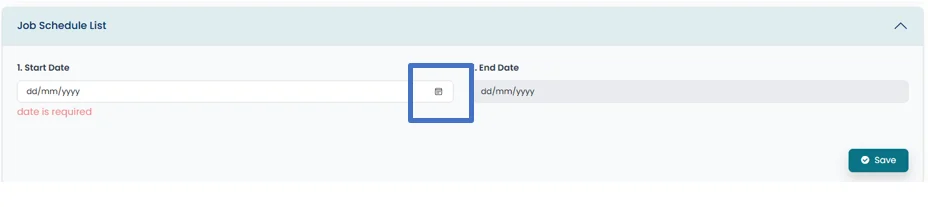
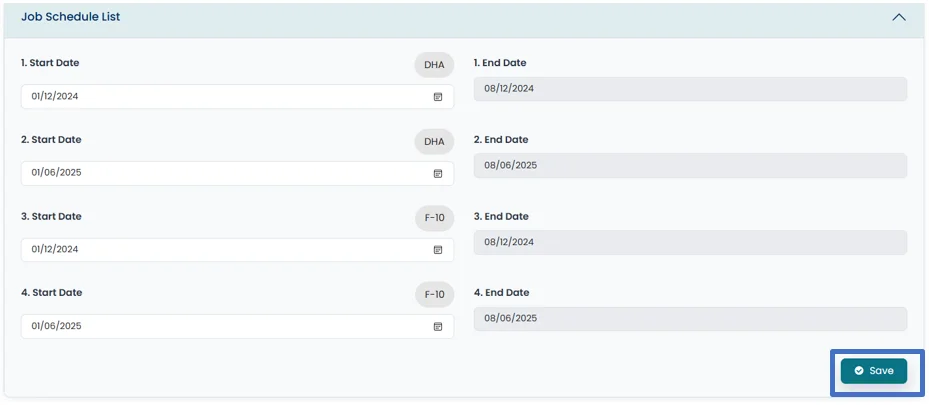
- Drop down “Job schedule List”, click on calendar icon to select the “start date”. “End date” will be calculated by system based on the number of selected weeks in “time and date allocation” section.
- If repeat job box is checked, system will create separate start and end date areas for selecting date depending on frequency.
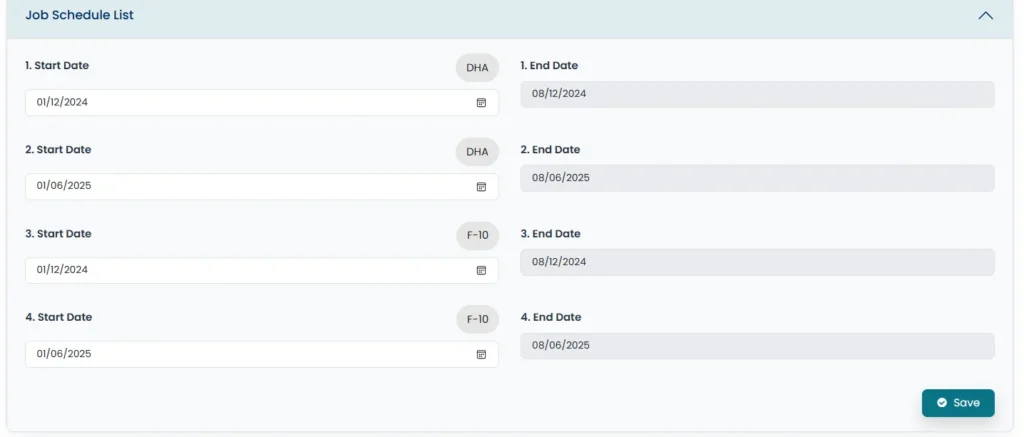
- Click on save button to save the added information.
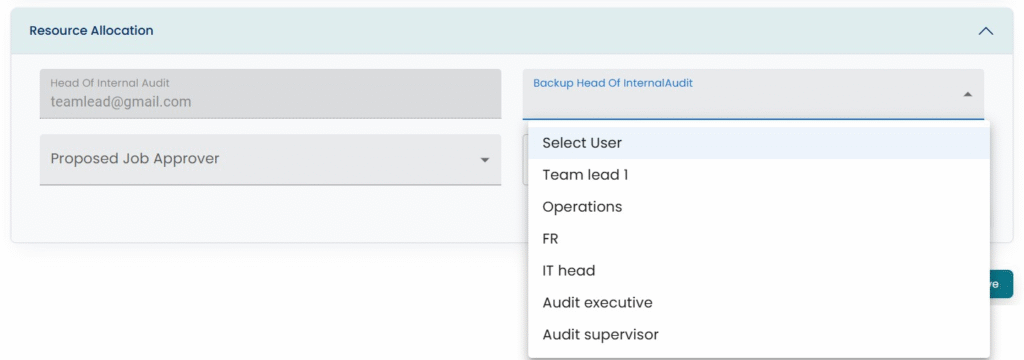
- In the Resources Allocation, based on the skills and number of resources required, System will provide you the list of employees. User can select the relevant person for the job by clicking on drop- down menu.
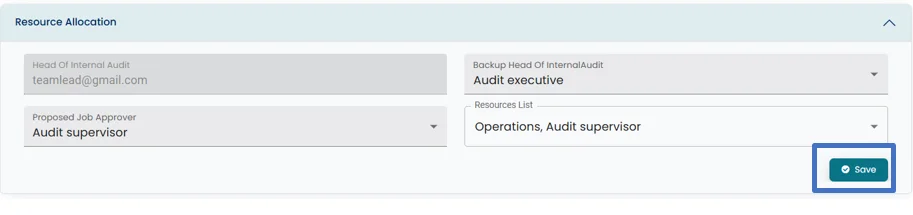
- After selection of resources to execute the job, click on “Save” button to Continue.
- Click on Submit button, after all the sections are populated and saved
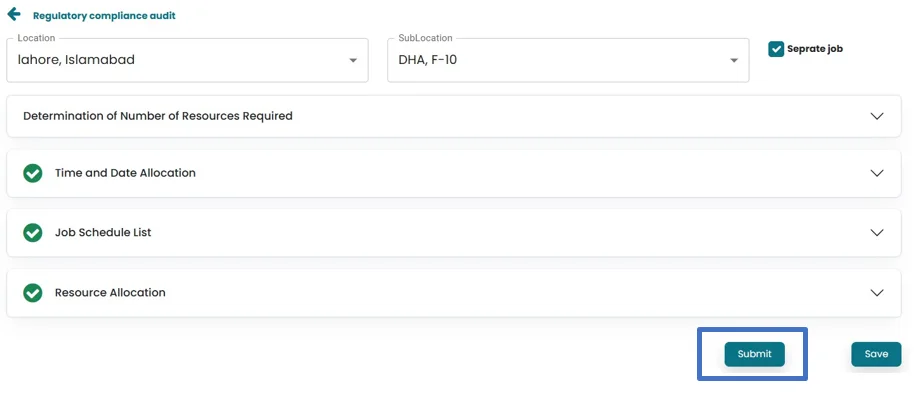
Note: Once the Schedule is submitted, Only the Internal Audit Head can make changes to the Schedule, or he can click on the feedback button in “Audit Job summary” section, so that other resources on the job can alter the Job scheduling section.