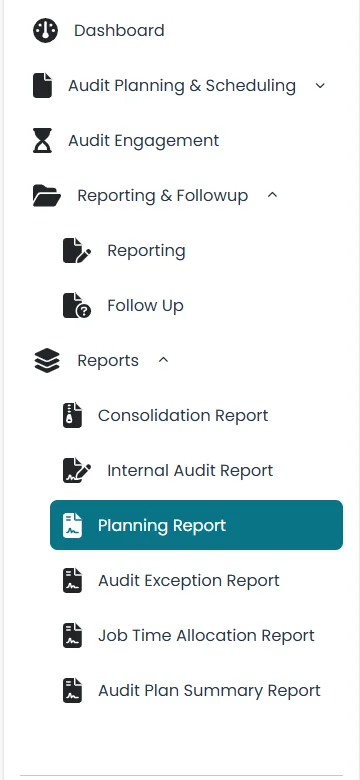
- Click on Report and then click on Planning Reports on the left side.
- Click on Generate report on top right corner of window.

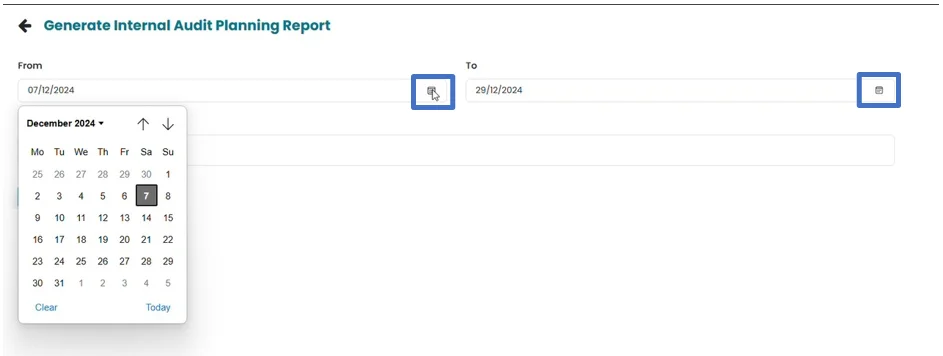
- Select start and end date by clicking on calendar icon.
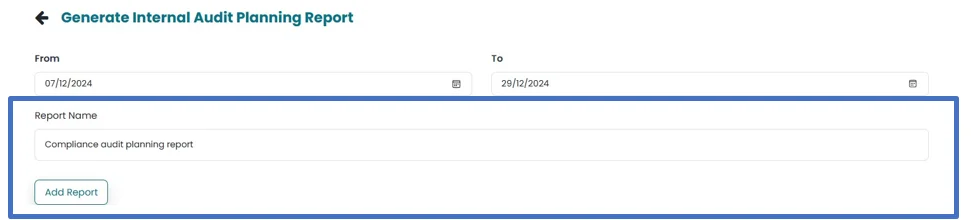
- Add report name in the space provided and then click on Add Report in order to generate planning report
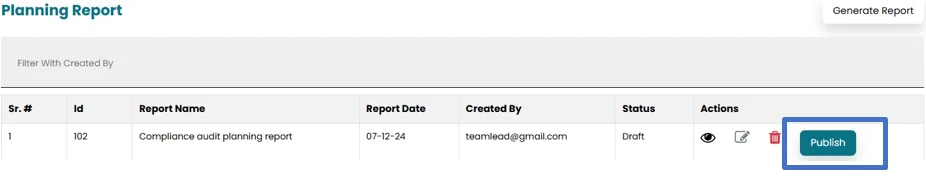
- Report will appear on the main Planning report window. User can View, Edit and Delete the report by clicking on respective icons.
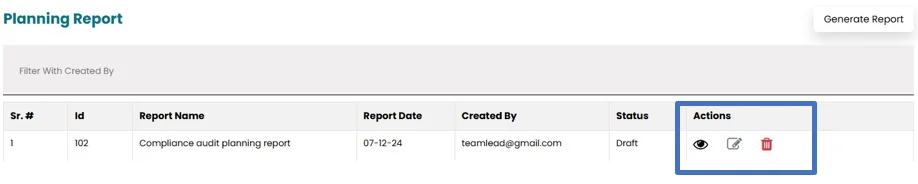
- After clicking on Edit icon, Audit planning report will open. Report name and Dates will be pre populated by system.

- User need to populate Executive summary, Audit planning Methodology, Risk Assessment summary, Organization strategy and Summary of Risks.
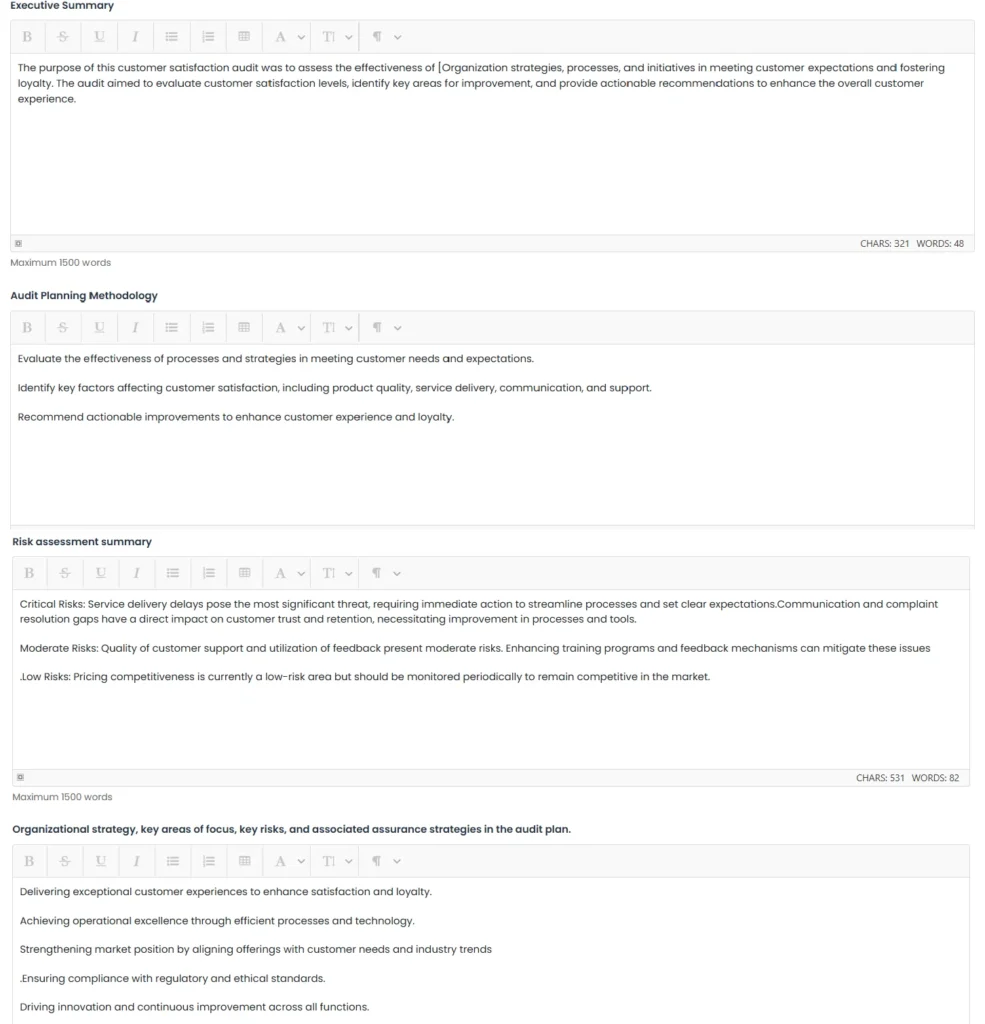
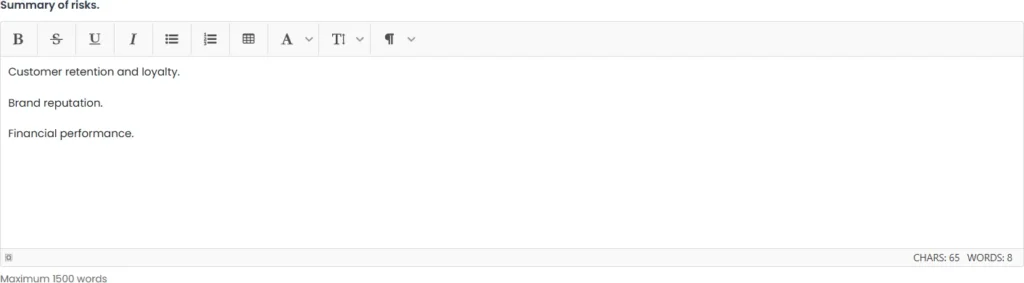
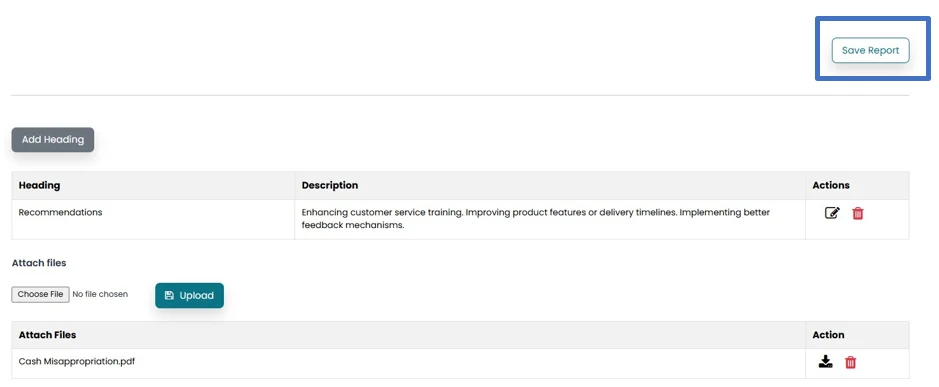
- User can Add additional information by clicking on Add Heading.

- Populate area provided for heading and description and click on Add Heading at the bottom of the window.
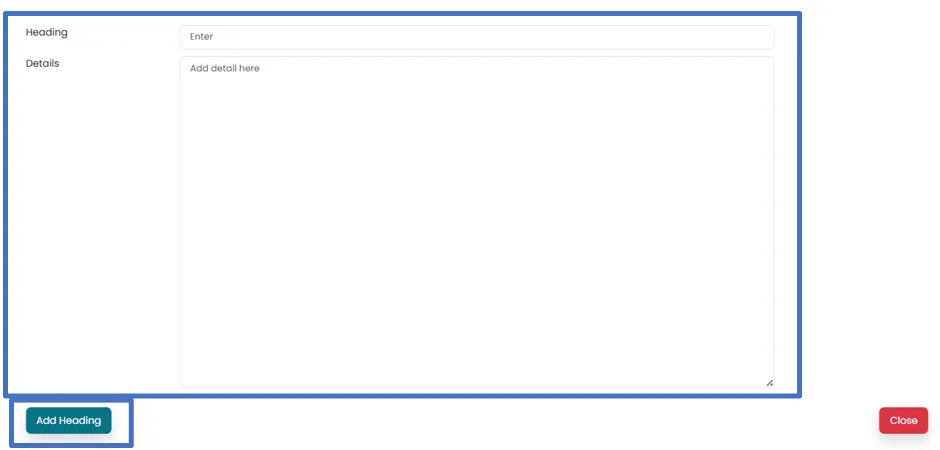
- Added heading can be edited or deleted by clicking on respective icons

- File can be added by clicking on Choose file and then clicking on Upload button.

- Click on Save report to save the changes made.
- Click on back Icon on the top of the screen to go to the main Planning report window.

- After Saving the report, Publish button will appear on the main Planning report window. Click on that to Publish the report.